Output
The Output page contains all files generated by the meeting. To access this page, click the Output icon  in the menu on the left. This page shows output from the current meeting as well as the last 50 meetings.
Per meeting, you can download the report and the recording (if you recorded the meeting) and see the voting results. Click the arrow icon next to the meeting to see additional information and download the recording file.
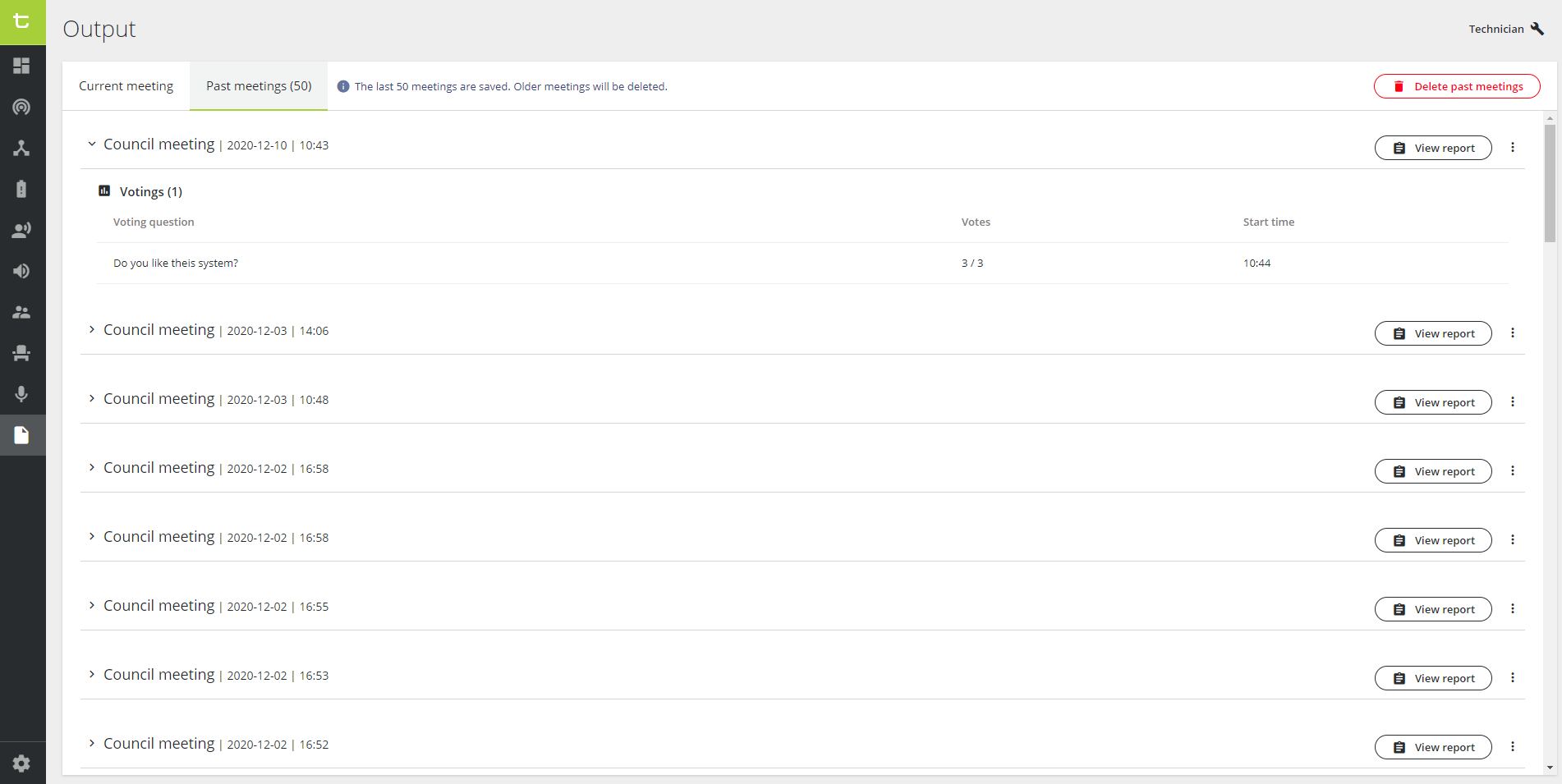
Figure 1-1: Output page
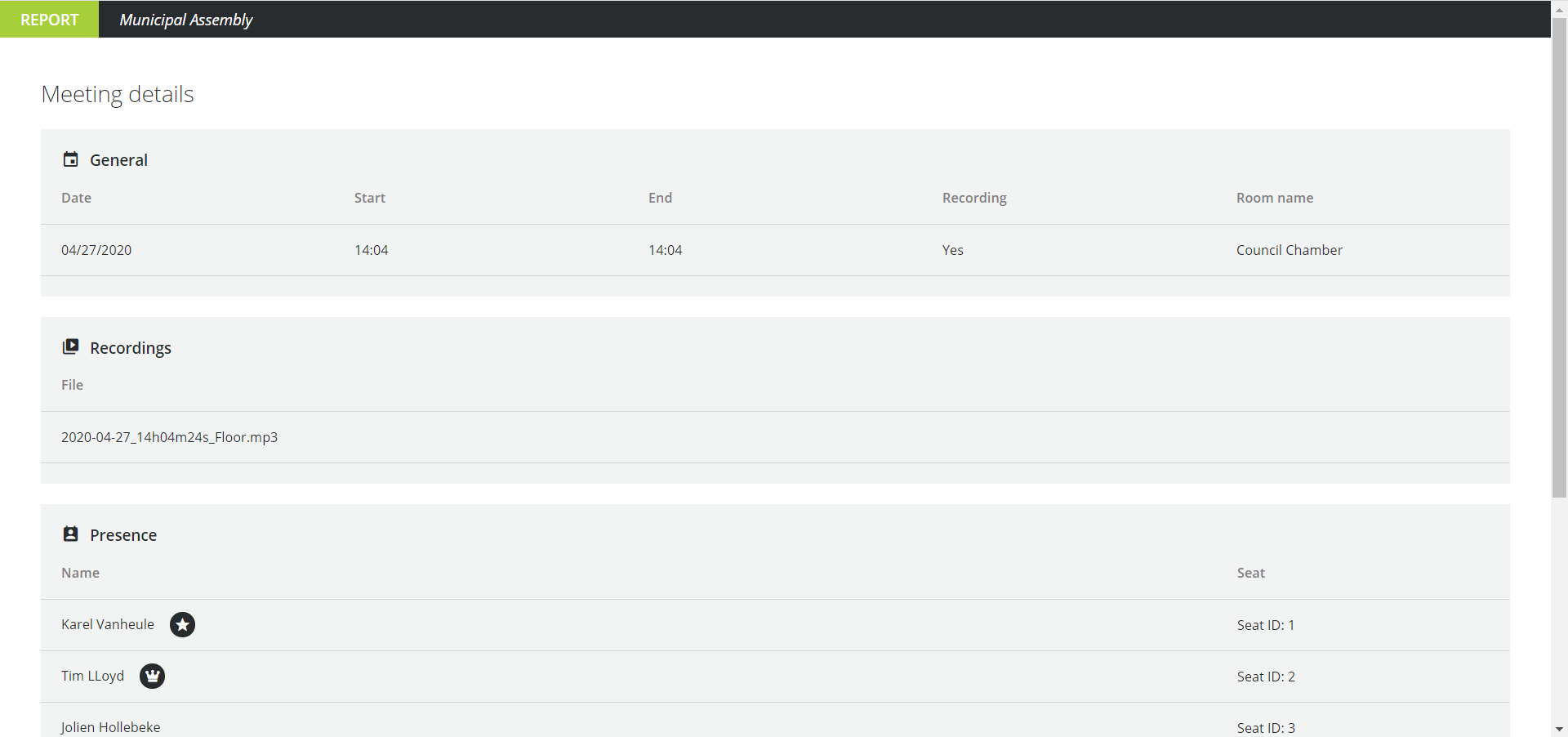
Figure 1-2: Example of a meeting report
You can only view this page when you have the correct license.
To download the report after you opened it, use the following keyboard shortcut: CTRL + P. The window below opens:
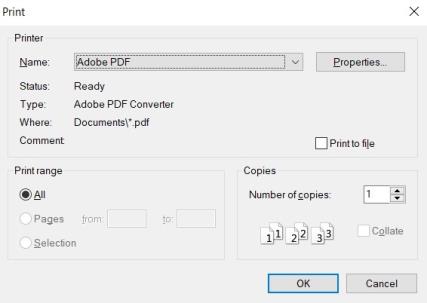
In the Printer Name field, select Adobe PDF, then cllick on OK. The report will be saved in your destination folder.
Delete meetings
To delete all past meetings, click the button Delete past meeting on top of the list. You can also delete a single meeting by clicking the More icon  next to the meeting and selecting Delete meeting.
Delete meetings
To delete all past meetings, click the button Delete past meeting on top of the list. You can also delete a single meeting by clicking the More icon next to the meeting and selecting Delete meeting.